Election Localization
The Sequent platform allows administrators to overwrite or customize any text appearing in the Admin Portal or the Voter Portal. This is achieved through the Localization feature, which maps specific system "keys" to custom display values in different languages.
Overwriting Admin Portal Text
You can change the labels of menus and tabs within the Admin Portal to better suit your organization's terminology.
- Navigate to the Settings menu and select the Localization tab.
- Choose the language you wish to modify (e.g., English).
- Click the
+ ADDbutton to create a new localization configuration.
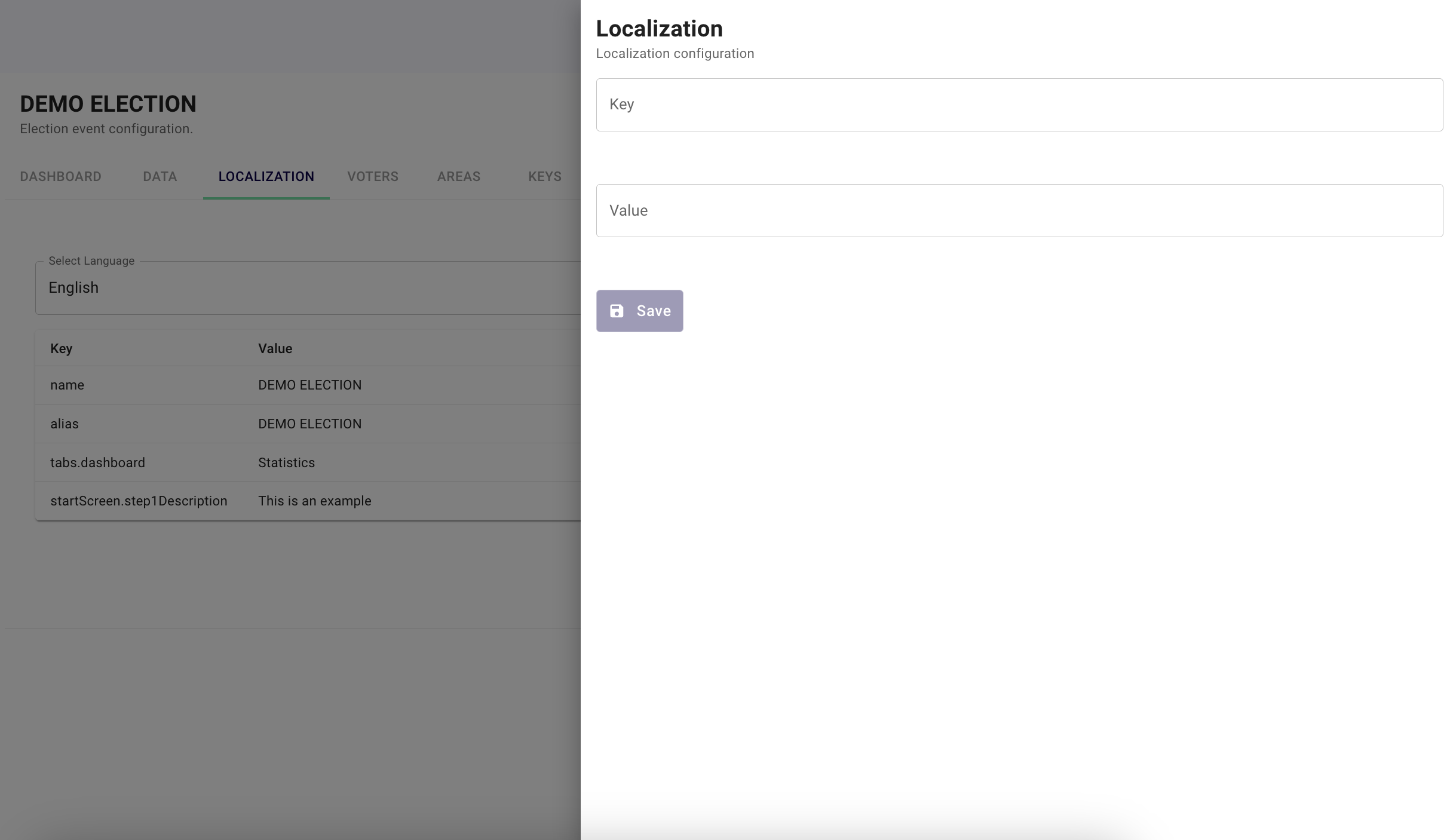
- Enter the Key for the text you want to change (e.g.,
electionEventScreen.tabs.dashboard). - Enter the new Value you want to display (e.g., "Statistics").
- Click
Save.
Overwriting Voting Portal Text
To customize the experience for voters, you can modify instructions and descriptions within the voting interface.
- Select the specific Electoral Event or Election you want to modify.
- Click on the Localization menu in the top navigation bar.
- Select
+ ADDto overwrite a specific element of the voter interface.
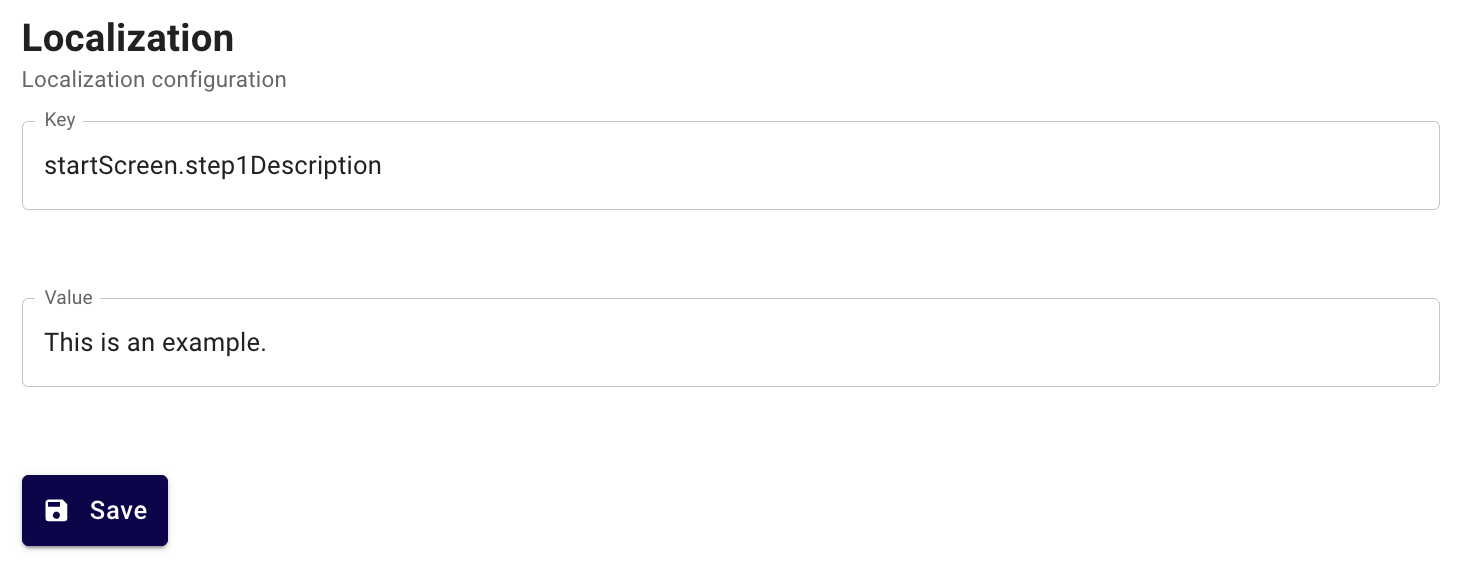
- Provide the specific Key (e.g.,
startScreen.step1Description) and the new Value. - Click
Saveto apply the changes to the voter experience.
info
Key Identification: To successfully overwrite text, you must know the specific system key associated with that screen element. All text across all screens can be modified once the corresponding key is identified.