Create Election
This tutorial guides you through the process of creating a new election event, setting up specific elections, and adding contests and candidates within the Sequent Admin Portal.
Step 1: Initiate Election Event Creation
There are several ways to start creating a new election event from the sidebar of the Sequent Admin Portal:

- Election Events Menu: Select the
Election Eventsmenu and then selectCreate Election Event. - Election List: From the election list, click on one of the three-dot icons and choose the option to
Create an Election Event. - Direct Sidebar Link: Click directly on the
+ Create an Election Eventmenu in the sidebar.
Step 2: Configure Event Details
After initiating the process, the system will prompt you for the basic configuration of the event.

- Enter the Name of the election event.
- Provide a Description.
- Select
Save.
Post-Creation Options: Once the event is created, you will see different menu options at the election event level, including Dashboard, Monitoring, Data, Localization, and Voters.
Step 3: Set Event Data and Preferences
In the Data tab, you can manage the core properties of the event.
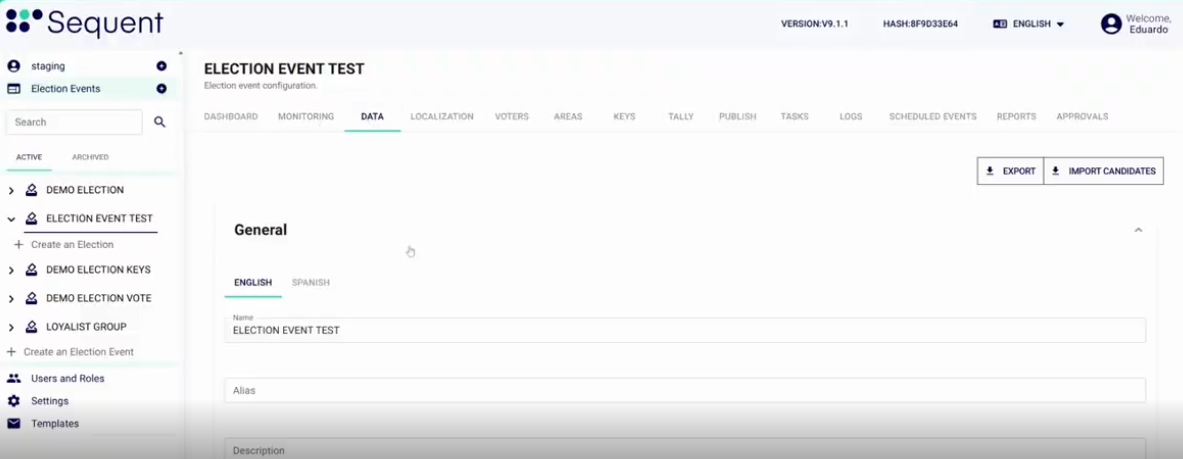
- Localization: View and define names and aliases in different languages, such as English and Spanish.
- Language Settings: Set up the default languages for the event.
- Ballot Design: Customize visual options for the digital ballot.
- Advanced Configurations: Manage specific policies such as the Countdown timer or the Encryption Policy.
Step 4: Create a Specific Election
An Election Event acts as a container that can hold one or more specific elections.
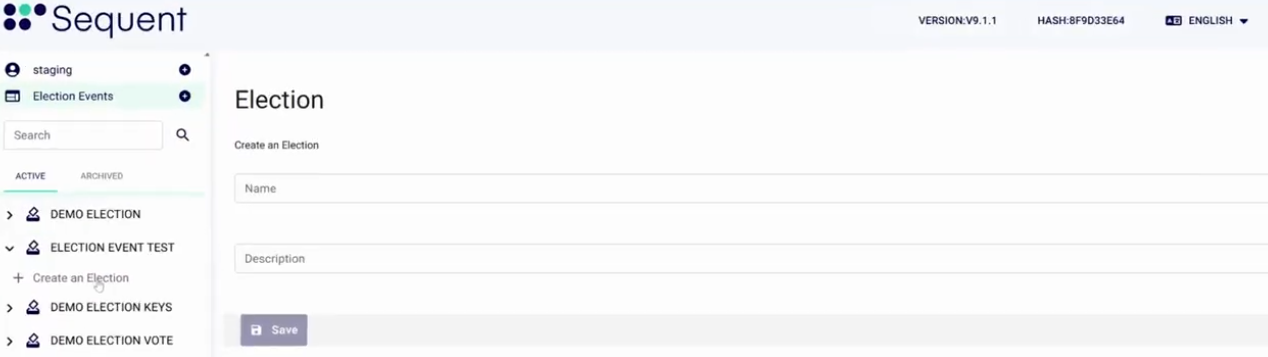
- In the sidebar under your new event, select
+ Create an Election. - Enter the Name and Description for the specific election.
- Select
Save. - (Optional) Continue customizing your election using the various configurations available in the Data tab.
Election Level Dashboards: Each specific election has its own dashboard to track metrics like eligible voters, actual voters, and voting trends by day or channel.
Step 5: Add Contests and Candidates
Finally, define the structure of your ballot by adding contests (questions) and their respective candidates.
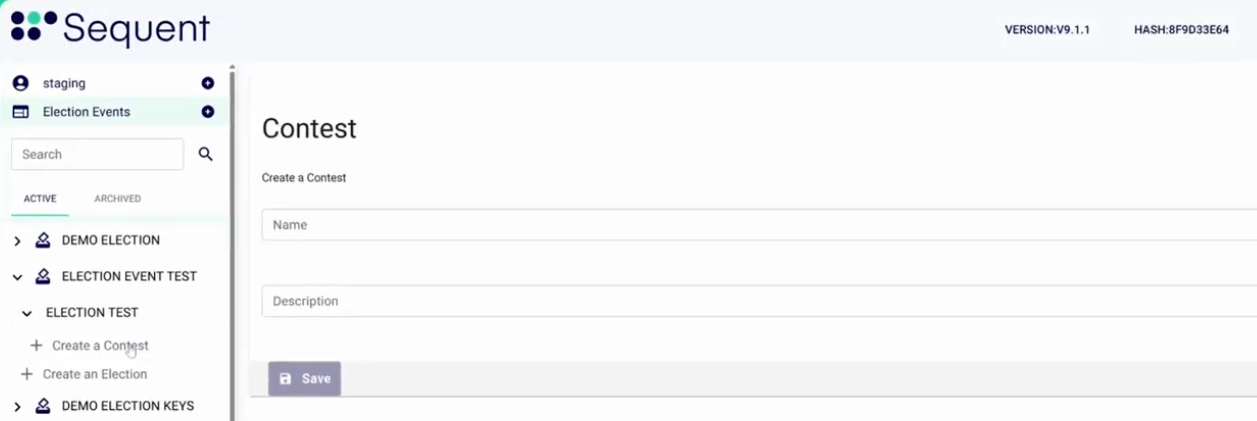
- Create a Contest: Select
+ Create a Contestunder the specific election. Enter the name (e.g., "Question 1") and clickSave.
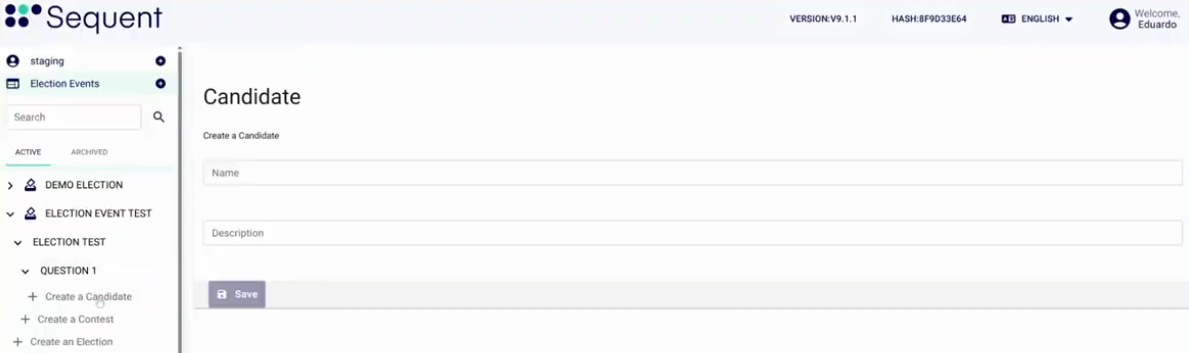
- Add Candidates: Under the newly created contest, select
+ Create a Candidate. - Enter the Candidate Name and details, then select
Save. - (Optional) Customize your contest using the various configurations available in the Data tab.