IdP SSO Configuration & Handoff
Overview
This guide is for Sequent delivery team members responsible for:
- Configuring the Keycloak Service Provider (SP) for IdP-initiated SSO integrations
- Testing the integration before client handoff
- Handing off the integration to third-party clients
Audience: Sequent operations, delivery, and support teams
For third-party integrators: See the IdP-Initiated SSO Integration Guide instead.
For internal developers: See the IdP-Initiated SSO Design & Implementation for technical details.
What This Guide Covers
- Keycloak SP configuration for a new tenant/event
- Testing with the SimpleSAMLphp reference implementation before client handoff
- Information package to provide to third-party integrators
- Handoff checklist to ensure smooth client integration
- Troubleshooting common issues during integration
Architecture Overview
- Third-Party IdP: Client's identity provider (they control this)
- Keycloak (SP/Broker): Sequent-controlled authentication service that receives SAML assertions
- Voting Portal: Target application where users access voting functionality
- SimpleSAMLphp Reference: Testing tool to verify Keycloak configuration before client integration
Prerequisites
Before starting a new IdP-initiated SSO integration:
-
Tenant and Event Information:
- Tenant ID (UUID)
- Event ID (UUID)
- Client organization name (for IdP alias)
-
Access to Keycloak Admin Console:
- Admin credentials for the Keycloak instance
- Ability to create/modify realms, identity providers, and clients
-
For Testing (Optional but Recommended):
- Local SimpleSAMLphp instance for pre-handoff testing
- Access to the Step repository (
.devcontainer/simplesamlphp/)
-
Client Information (to be received from third-party):
- IdP Entity ID
- IdP SSO Service URL
- IdP public signing certificate (X.509 format)
- IdP metadata URL (if available)
Phase 1: Initial Keycloak Configuration
Step 1.1: Create or Verify the Realm
The realm identifier follows the pattern:
tenant-{TENANT_ID}-event-{EVENT_ID}
Example:
tenant-90505c8a-23a9-4cdf-a26b-4e19f6a097d5-event-cd1397d3-d236-42b4-a019-49143b616e13
Typically, this is created automatically for every Election Event. For example, when you import or create an election event, the url of the election event contains the election event id, something like:
http://localhost:3002/sequent_backend_election_event/e3329c90-a238-4e45-b480-18a8b5ad64cf
And also the realm identifier appear in the login link for the election event,
that you can obtain at the bottom of the Admin Portal Dashboard under the Link
Voter Login URL, something like:
http://localhost:3000/tenant/90505c8a-23a9-4cdf-a26b-4e19f6a097d5/event/e3329c90-a238-4e45-b480-18a8b5ad64cf/login
Once you have obtained the realm identifier:
- Log into Keycloak Admin Console
- Find the realm in the sidebar under
Manage Realmsaction
To export the realm certificate:
- Go to Realm Settings → Keys tab
- Find the
RSAkey of useSIG - Click Certificate button
- Copy the certificate (this will be provided to the client as
SP_CERT_DATA)
Step 1.2: Configure the vp-sso SAML Client
This client represents the voting portal application. The configuration below is typically already automatically set up by the default keycloak realm configuration in Sequent Voting Plataform. However, you can also use the instructions below to verify everything is correctly configured, or in case the realm template is misconfigured or old, to configure these settings manually. Note: The vp-sso client configuration that comes by default at election event creation might be wrong or outdated. It is recommended to create a new configuration or follow this guide to review it.
-
Navigate: Go to Clients in the realm
-
Create Client: Click Create client
-
General Settings:
- Client type: SAML
- Client ID:
vp-sso - Click Next
-
Capability config: Keep defaults, click Next
-
Login settings:
- Root URL:
{VOTING_PORTAL_URL}(e.g.,https://voting-{subdomain}.sequentech.io) - Valid redirect URIs:
{VOTING_PORTAL_URL}/* - IdP-initiated SSO URL Name:
vp-sso - IdP-initiated SSO RelayState:
{VOTING_PORTAL_URL}/tenant/{TENANT_ID}/event/{EVENT_ID}/login
- Root URL:
-
SAML Capabilities:
- Name ID format:
email - Force Name ID format: OFF
- Force POST binding: ON
- Include AuthnStatement: ON
- Name ID format:
-
Signature and Encryption:
- Sign Documents: ON
- Sign Assertions: ON
- Signature Algorithm:
RSA_SHA256 - Client signature required: OFF (the voting portal doesn't sign requests). Ignore it if this option does not appear.
-
Click
Save -
AdvancedTab:- Fine grain SAML endpoint configuration:
- Assertion Consumer Service POST Binding URL:
{KEYCLOAK_BASE_URL}/realms/{REALM_ID}/redirect-provider/redirect
- Assertion Consumer Service POST Binding URL:
- Fine grain SAML endpoint configuration:
-
Click
Save
Step 1.3: Prepare Configuration for Client
At this point, you have the Keycloak configuration complete. Now prepare the information package for the client.
Configuration values to provide to client:
| Parameter | Value | Example |
|---|---|---|
TENANT_ID | The tenant UUID | abc12345-6789-... |
EVENT_ID | The event UUID | def67890-1234-... |
SP_BASE_URL | Keycloak base URL | https://login-example.sequent.vote/auth/ |
SP_IDP_ALIAS | IdP alias (decided with client) | clientname-idp |
SP_CLIENT_ID | SAML client ID | vp-sso |
SP_CERT_DATA | Keycloak realm certificate | MIIDOzCCAi... |
VOTING_PORTAL_URL | Voting portal URL | https://voting-example.sequent.vote |
Phase 2: Test with SimpleSAMLphp Reference Implementation
Before handing off to the client, test the Keycloak configuration using the SimpleSAMLphp reference implementation.
Step 2.1: Set Up SimpleSAMLphp Locally
If you are testing this in step repository devcontainer environment, then you
need to edit the environment configuration variables in the .devcontainer/.env
file. Otherwise, you will have to replicate these variables used by the
simplesamlphp sample app, which you can find in
.devcontainer/simplesamlphp/.env.example.
If you are in dev environment edit .devcontainer/.env.development and do not forget to run the vscode task update.env afterwards. Last but not least: do not commit the changes.
We will asume you are using the step repository devcontainer environment.
-
Edit
.devcontainer/.envwith your test configuration:Please ensure you use the data relative to your specific environment. For example,
SP_CERT_DATAwas obtained in point 1.1. You will be editing the section titledSimpleSAMLphp IdP Configurationthat starts as it is shown below:################################################################################
# SimpleSAMLphp IdP Configuration
# These variables configure the SimpleSAMLphp instance as a reference IdP
# implementation for third-party integrators.
# =============================================================================
# Simple SAML PHP General Configuration
# ============================================================================= -
Start SimpleSAMLphp (using Docker or your preferred method). If you are testing this with devcontainers, you can run in VSCode the task
logs.restart.simplesamlphp. -
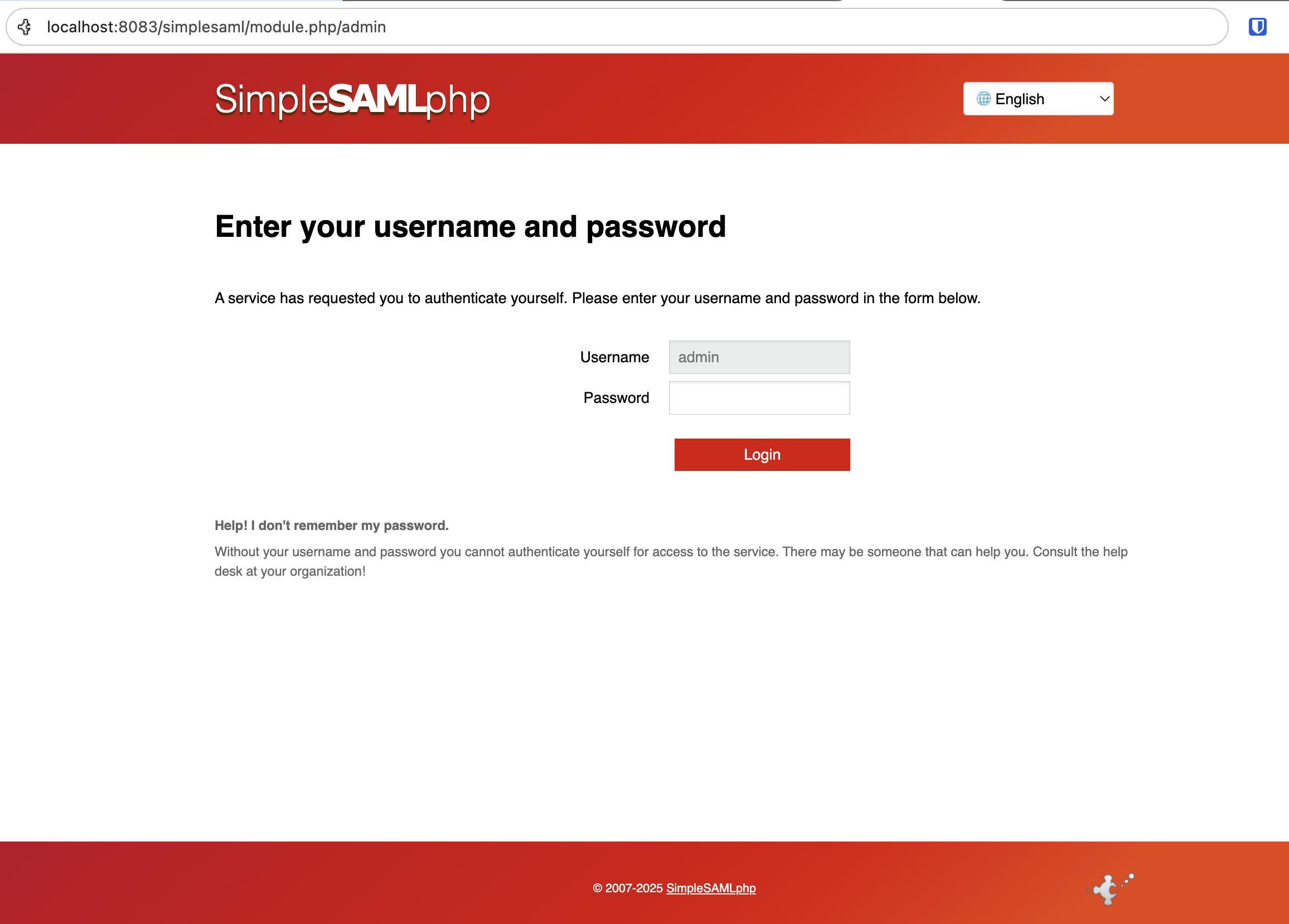
Login into SimpleSAMLphp application, it should be an URL like
https://localhost:8083/simplesaml/module.php/admin, in general something like{IDP_BASE_URL}/module.php/admin. You should get a login page as below:
The admin password is setup in the .env file mentioned earlier with the
variable SSP_ADMIN_PASSWORD and it's admin by default, but please remember
this is just a sample implementation, use secure passwords in production.
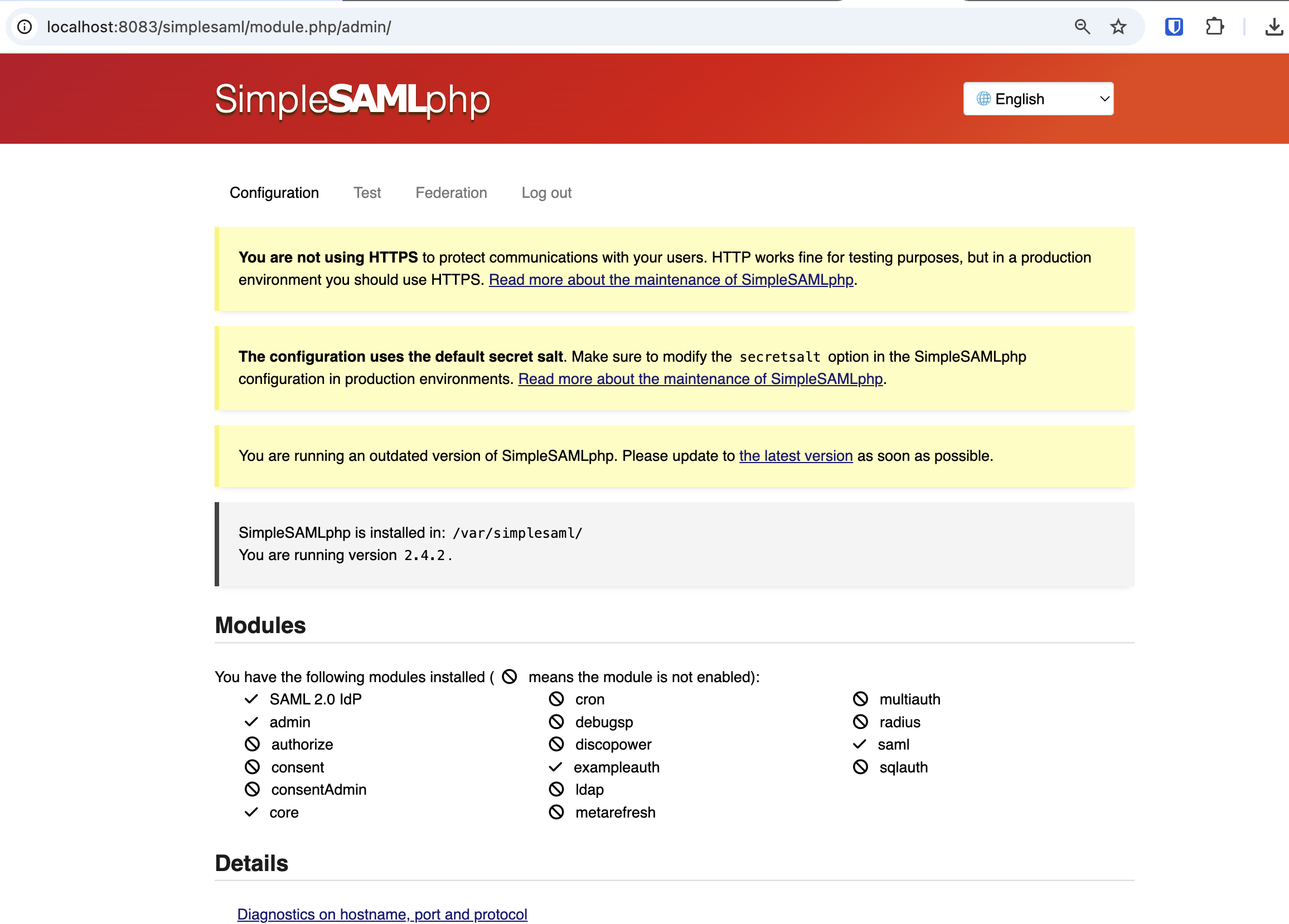
After login in the SimpleSAMLphp Admin Portal, you should see something like:
Step 2.2: Configure Keycloak to Trust SimpleSAMLphp
Now configure Keycloak to accept SAML assertions from your local SimpleSAMLphp instance.
- Navigate to Authentication in your Keycloak realm
- In the flows tab Click Create flow
- Name:
saml first broker flow - Flow type: Basic flow
- Name:
- Click Create
- Click Add execution
- Search for
Detect existing broker userexecution and then click Add - Set the execution to Required
- Click Add execution
- Search for
Automatically set existing userexecution and then click Add - Set the execution to Required
- Navigate to Identity Providers in your Keycloak realm
- Add provider: Click Add provider → SAML v2.0
- Configure Identity Provider:
-
Alias:
yourcompany-idp(matchesSP_IDP_ALIASfrom.env).noteIt is not possible to edit the Alias if it already exists. If you need to change it, remove the existing Identity Provider and create a new one.
-
Display Name:
SimpleSAMLphp IdP -
Service provider entity ID:
tenant-{TENANT_ID}-event-{EVENT_ID}
- Import SimpleSAMLphp metadata (recommended):
- Use Entity Descriptor: OFF
- Download
https://localhost:8083/simplesaml/saml2/idp/metadata.php - Drag and drop the downloaded xml into Import config from file
- Principal Type:
Attribute [Name] - Principal Attribute:
email - Validate Signatures: ON
- Want AuthnRequests signed: ON
- Click Add
- Then edit it and configure First login flow override: saml first broker flow.
- Click Save
OR manually configure:
- Use Entity Descriptor: OFF
- Single Sign-On Service URL:
https://localhost:8083/simplesaml/saml2/idp/SSOService.php - Single Logout Service URL:
https://localhost:8083/simplesaml/saml2/idp/SingleLogoutService.php - NameID Policy Format: Transient
- Principal Type: Attribute Name
- Principal Attribute: email
- HTTP-POST Binding Response: ON
- HTTP-POST Binding AuthnRequest: ON
- Want AuthnRequests Signed: ON
- Signature Algorithm: RSA_SHA256
- Want Assertions Signed: ON
- Validate Signatures: ON
- Validating X509 Certificates: Paste SimpleSAMLphp's public certificate (
server.crtcontent, without BEGIN/END lines) - Click Add and scroll to the bottom to find the
First login flow overridesetting. - First login flow override: saml first broker flow
- Configure Attribute Mapper:
- Go to Mappers tab
- Click Create
- Name:
email-mapper - Mapper type: Attribute Importer
- Attribute Name:
email - Friendly Name: Email
- Name Format: ATTRIBUTE_FORMAT_BASIC
- User Attribute Name:
email - Click Save
Step 2.3: (Optional) Enable Auto-Redirect to IdP
To skip the Keycloak login page and automatically redirect users to the external IdP:
- Navigate to Authentication → Flows in your Keycloak realm
- Select Browser flow (or your custom browser flow if you have one)
- Find the Identity Provider Redirector execution
- Click Actions → Config
- Set Alias:
auto-redirect-idp - Set Default Identity Provider:
yourcompany-idp(must match your IdP alias exactly) - Click Save
What this does: Users accessing the voting portal will be immediately redirected to the external IdP without seeing the Keycloak login page.
When to use: Enable this when all voters must authenticate through the external IdP and you don't need local Keycloak accounts.
Admin access: You can still access Keycloak admin console directly at {KEYCLOAK_URL}/admin/{realm}/console
Step 2.4: Run End-to-End Test
-
Access the SimpleSAMLphp trigger page:
https://localhost:8083/simplesaml/idp-initiated-sso.php -
Click "Login to Voting Portal"
-
Authenticate with test credentials (as configured in
SSP_EXAMPLE_USERSenv var):- Default: Username:
user1/ Password:password - Or: Username:
user2/ Password:password
You can customize test users by editing the
SSP_EXAMPLE_USERSenvironment variable in.devcontainer/.env. Format:username1:password1:email1,username2:password2:email2,... - Default: Username:
-
Authenticated: You should get authenticated succesfully and redirected to the voting portal. The intermiate steps that happens quickly one after the other are:
- SimpleSAMLphp authenticates the user
- SAML assertion is generated and POSTed to Keycloak
- Keycloak validates the signature
- Keycloak creates/updates user based on email attribute
- Browser redirects to Voting Portal
- Voting Portal detects user is authenticated and it lists available ballots
Step 2.5: Troubleshooting Test Issues
Issue: Login timeout. Please sign in again
- Verify
EVENT_IDandTENANT_IDin.envare correct and that the Keycloak Service provider entity ID is equal to the realm's name, something liketenant-{TENANT_ID}-event-{EVENT_ID}
Issue: "Identity Provider not found"
- Verify
SP_IDP_ALIASin.envmatches the Keycloak Identity Provider alias
Issue: "Signature validation failed"
- Ensure SimpleSAMLphp's
server.crtcertificate is correctly pasted in Keycloak - Remove
-----BEGIN CERTIFICATE-----and-----END CERTIFICATE-----lines - Check that SimpleSAMLphp is signing assertions (check
saml20-idp-hosted.php)
Issue: "User not created"
- Verify the
emailattribute mapper is configured in Keycloak - Check SimpleSAMLphp's
authsources.phpincludesemailin user attributes - Verify the
SSP_EXAMPLE_USERSenvironment variable is correctly formatted with emails
Issue: "Wrong redirect URL"
- Verify the
RelayStatein SimpleSAMLphp'sidp-initiated-sso.php - Check it matches the expected voting portal login URL pattern
Phase 3: Client Handoff
Once testing is successful, prepare the handoff package for the client.
Step 3.1: Information Package for Client
Provide the client with:
- Configuration Values (from Step 1.3)
- Integration Guide: Link to
/docs/integrations/idp_initiated_sso_integration_guide - Reference Implementation: Access to
.devcontainer/simplesamlphp/in the Step repository - Keycloak Metadata URL:
{SP_BASE_URL}/realms/tenant-{TENANT_ID}-event-{EVENT_ID}/broker/{SP_IDP_ALIAS}/endpoint/descriptor
Step 3.2: Request from Client
Request the following from the client:
- IdP Metadata URL (preferred) or:
- Manual configuration values:
- IdP Entity ID
- IdP SSO Service URL
- IdP Single Logout Service URL (optional)
- IdP public signing certificate (X.509 PEM format)
- Test user credentials for staging verification
- Expected production go-live date
Step 3.3: Configure Keycloak with Client IdP
Once you receive the client's IdP information:
-
Delete or disable the SimpleSAMLphp test Identity Provider
-
Create new Identity Provider for the client:
- Alias:
{client-name}-idp(use client organization name) - Import client's IdP metadata (preferred) or manually configure
- Configure same attribute mappers as in testing
- Enable signature validation (
Validate Signatures: ON) - Paste client's public certificate
- Alias:
-
Test with client:
- Client initiates SSO from their IdP
- Verify user attributes are correctly mapped
- Verify redirect to voting portal works
Step 3.4: Production Handoff Checklist
Before going live, verify:
- Keycloak realm configuration complete
- Client's production IdP configured and trusted
- Production certificates exchanged
- Attribute mapping tested (email required)
- End-to-end test successful in staging environment
- Production URLs configured (no localhost references)
- HTTPS enabled on all endpoints
- Backup of Keycloak realm configuration taken
- Monitoring and logging enabled
- Client has integration guide documentation
- Go-live date coordinated with client
Phase 4: Post-Handoff Support
Common Client Issues
Issue 1: "SAML Response Signature Invalid"
Client Side:
- Their IdP isn't signing the response/assertion
- Wrong signing algorithm
- Certificate mismatch
Sequent Side:
- Verify we have their correct public certificate in Keycloak
- Check
Validate Signaturesis enabled - Verify signing algorithm matches (RSA-SHA256 or stronger)
Resolution:
- Request updated certificate from client
- Have client verify their IdP signing configuration
- Use SAML tracer to inspect signature in assertion
Issue 2: "Invalid Audience Restriction"
Cause: Client's IdP is sending wrong audience value
Resolution:
- Client must set audience to:
tenant-{TENANT_ID}-event-{EVENT_ID} - Verify client has correct
SP_REALMvalue - Reference the SimpleSAMLphp SP remote metadata configuration
Issue 3: "User Not Created / Email Missing"
Cause: Email attribute not included in SAML assertion
Resolution:
- Verify Keycloak attribute mapper configuration
- Have client check their IdP includes
emailattribute - Compare assertion structure with SimpleSAMLphp example
Issue 4: "RelayState Not Working"
Cause: RelayState not preserved through flow
Resolution:
- Verify client's IdP includes RelayState in SAML Response POST
- Check client is using correct RelayState URL format
- Test with SimpleSAMLphp to verify Keycloak side works
Issue 5: "SimpleSAMLphp trigger page not reachable in dev ENV"
Cause: Bad ports configuration
Resolution:
- Check PORTS tab in vscode to verify whether simplesamlphp service port is being forwarded
- Add simplesamlphp:8083
Debugging Tools
-
SAML Tracer Browser Extension:
- Firefox: SAML-tracer
- Chrome: SAML Chrome Panel
- Captures all SAML messages in flight
-
Keycloak Logs:
- Enable DEBUG level logging for SAML broker
- Check for signature validation errors
- Look for attribute mapping issues
-
Client Comparison:
- Compare client's SAML assertion with SimpleSAMLphp reference
- Verify structure matches expected format
Escalation Path
If issues persist:
- Review with internal dev team (reference design documentation)
- Request SAML tracer logs from client
- Compare assertions side-by-side with working SimpleSAMLphp example
- Schedule debug session with client technical team
- Check Keycloak version compatibility if using newer SAML features
Reference: Key URLs and Patterns
Keycloak URLs
Realm identifier:
tenant-{TENANT_ID}-event-{EVENT_ID}
IdP metadata endpoint:
{SP_BASE_URL}/realms/{REALM_ID}/broker/{IDP_ALIAS}/endpoint/descriptor
ACS URL:
{SP_BASE_URL}/realms/{REALM_ID}/broker/{IDP_ALIAS}/endpoint/clients/{CLIENT_ID}
Redirect provider endpoint:
{SP_BASE_URL}/realms/{REALM_ID}/redirect-provider/redirect
Voting Portal URLs
Login page:
{VOTING_PORTAL_URL}/tenant/{TENANT_ID}/event/{EVENT_ID}/login
SimpleSAMLphp Reference Files
- Configuration:
.devcontainer/simplesamlphp/config.php - Environment:
.devcontainer/simplesamlphp/.env.example - IdP Metadata:
.devcontainer/simplesamlphp/metadata/saml20-idp-hosted.php - SP Metadata:
.devcontainer/simplesamlphp/metadata/saml20-sp-remote.php - Trigger Page:
.devcontainer/simplesamlphp/public/idp-initiated-sso.php
Additional Resources
- Third-Party Integration Guide: IdP-Initiated SSO Integration Guide
- Internal Design Documentation: IdP-Initiated SSO Design & Implementation
- SimpleSAMLphp Reference:
.devcontainer/simplesamlphp/README.md - Keycloak Documentation: https://www.keycloak.org/docs/latest/server_admin/#_identity_broker