Basic Navigation
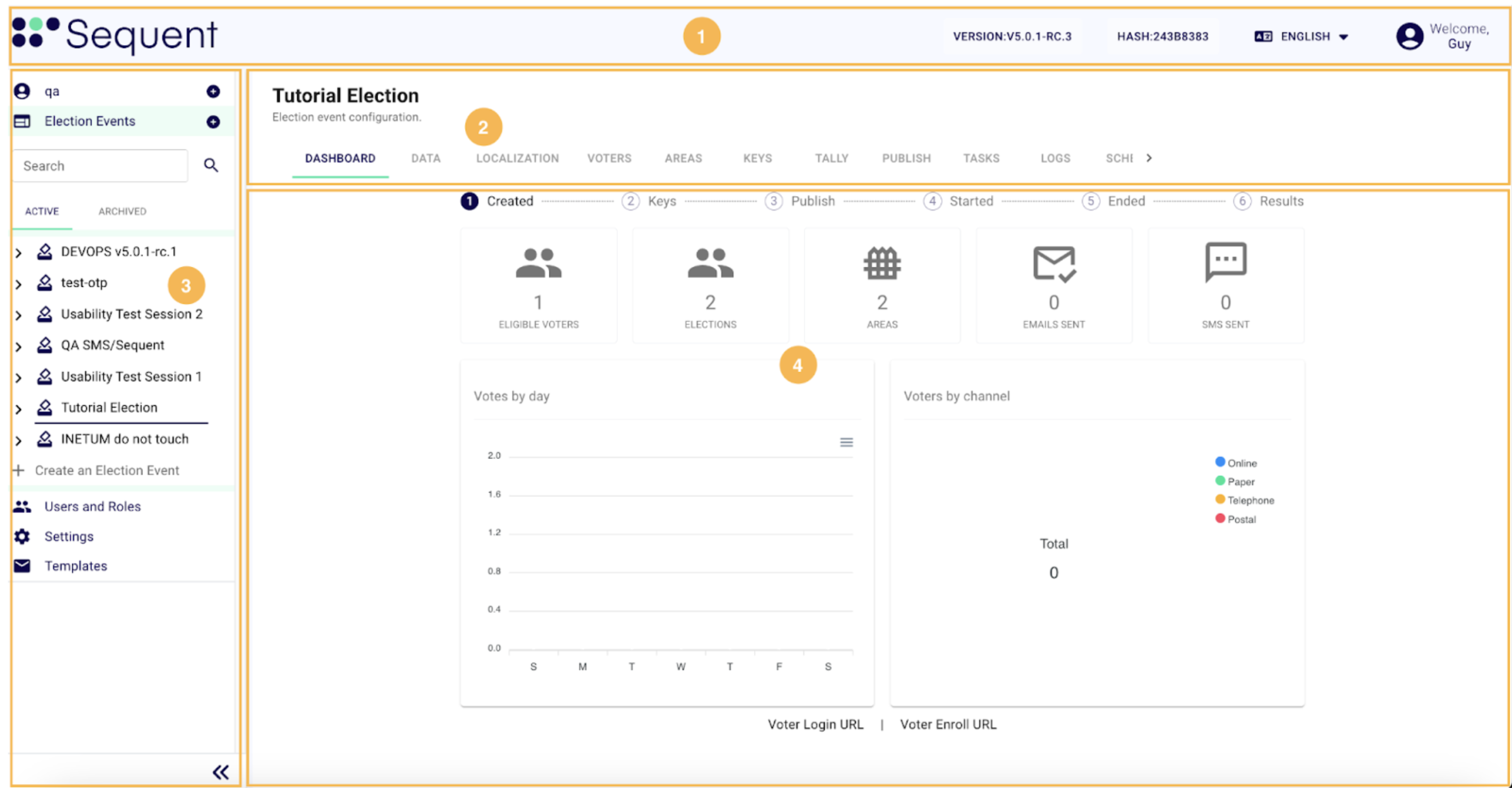
The system's user interface (UI) is divided into four main areas, each serving a specific function:
- Header (Top Bar)
- Navigation Tabs (Under Election Event Title)
- Side Menu (Left Sidebar)
- Main Content Area (Data Display)
1. Header
The header, located at the top of the screen, provides global controls and essential information that are always accessible. This area includes:
- System Logo and Version Number: The logo of the system, along with the current version number, is displayed prominently for easy identification.
- Language Selector: A dropdown menu that allows users to switch between different languages, ensuring that the system is accessible to a broader audience.
- Account Icon: An icon that provides access to user account settings and the option to log out of the system. This is where users can manage their profile information and security settings.
2. Navigation Tabs
The navigation tabs under the selected entity title let you easily browse different sections, each showing specific information. Each entity has several unique tabs designed for its specific functions and data. This setup makes it easy to find and manage all the details related to each entity.
3. Side Menu
The side menu, located on the left of the screen, provides easy access to Election Events, Settings, Users, Roles, and Communication Templates. This omnipresent menu ensures seamless navigation across all screens, allowing you to quickly access system settings and manage Election Events.
This section of the screen is one of the most critical areas of the system. It contains the Election Event tree, where you can access and create Elections, Contests/Questions, or Candidates/Answers.
To facilitate navigation, a search field is provided that allows you to search within the election event section and its entire tree structure for any entity name, whether it be a Question, Candidate, or Election.
Election Events are categorized into Active and Archived for better organization. This allows users to archive election events that have been finalized or used for testing purposes, maintaining a clean tree structure with only the events currently in progress.
4. Main Content Area
The main content area, situated in the center of the screen, displays the currently selected section, whether it is an Election Event, Settings, or Communication Templates, among others.
Each section can contain additional tabs that provide more detailed options and settings related to the chosen topic. This layout ensures that users have a comprehensive view and easy access to all relevant functionalities and information.